How to check CCTV footage without watching hours of video
Checking recorded footage usually means picking a day, dragging along a timeline and watching at high speed until something happens. Litmus NVR is free software that records the IP cameras you already have and turns every person and vehicle into a card as it records, so you start from who was there instead of from the timeline.
Why checking footage takes so long
- A timeline doesn’t show what happened. A day of video is one long bar. You drag, watch at high speed and drag again, and the few seconds you need are easy to skip past.
- Motion events catch everything that moves. Shadows, rain, headlights and leaves also count as motion, so a busy camera can mark hundreds of events a day.
- Each camera is checked separately. When someone walked past several cameras, you repeat the search on each one.
Play back recordings
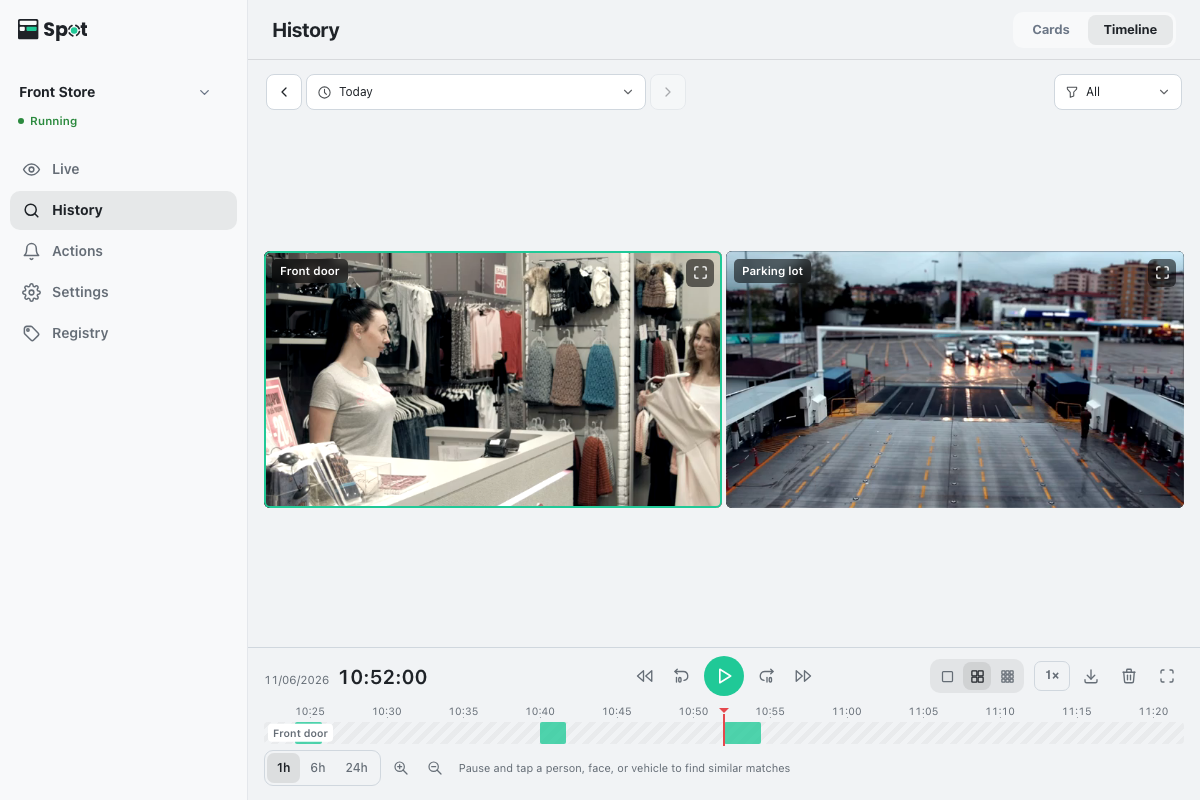
- Open History and choose Timeline. Click the range at the top and choose Today, Yesterday or dates in the calendar.
- Press play. All cameras play in sync on one time bar, and gaps without recordings are skipped. Choose a speed from 0.5× to 8×.
- Drag the time bar to the time you want, or use Previous recording and Next recording to jump from one recording to the next.
- Pause and click a person, face or vehicle to open that moment and find the other times they appeared.
Start from who was there
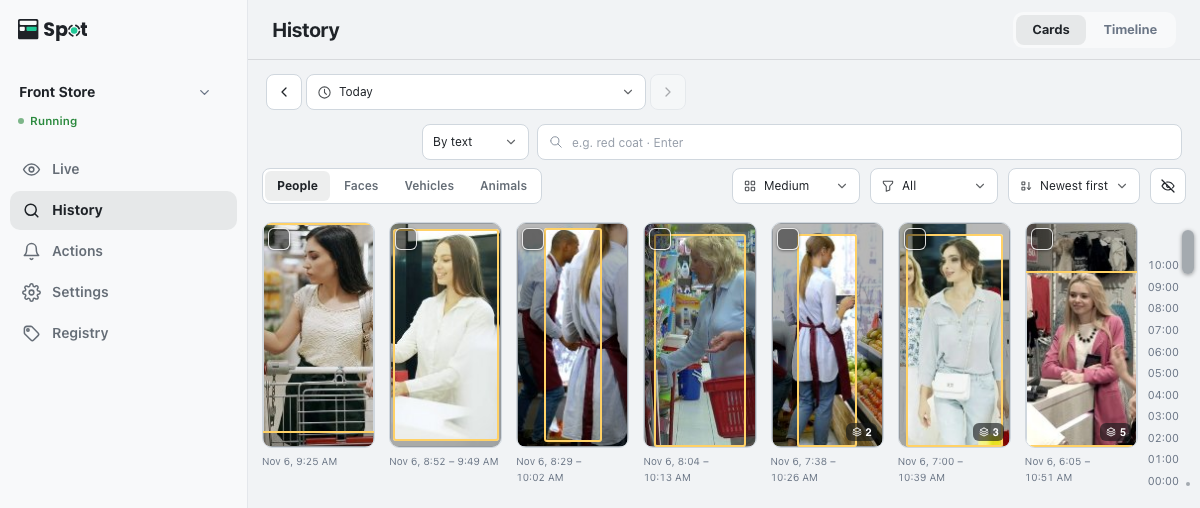
- Cards. In Cards, every person and vehicle recorded in the range is one card with a photo and the times it appeared. Open a card to see each stay on each camera in time order, and play any of them.
- Search by description. Type what you remember, such as “red coat”, or choose attributes such as top color, bag or hat.
- Find by appearance or face. Pick a person to find the other times they appeared. Appearance search compares clothing and build, so it works when the face is not visible. Faces don’t need to be registered first.
- Vehicles by plate. With vehicle recognition on, enter part of a plate number or a description such as “white truck”.
Save the clip you need
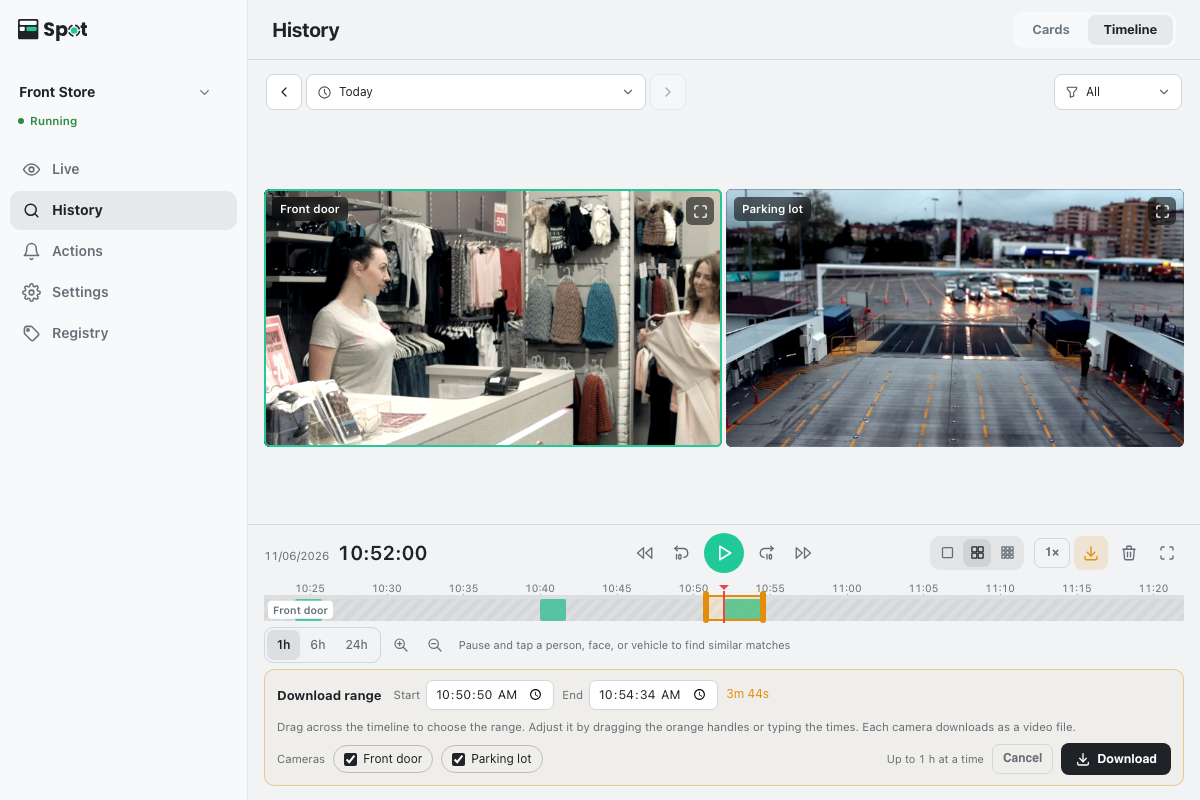
Click Download range on the timeline, drag across the time bar or type the start and end times, choose the cameras and click Download. Each camera is saved as an MP4 file, up to 1 hour at a time.
Check it on a PC or phone
- On your network. Open Litmus in a browser on any PC or phone on the same network. No Litmus account is needed.
- Away from home. Connect your Litmus account and use the phone app or app.litmusnvr.com to play back and search recordings, without port forwarding.
Which cameras work
Any camera that supports RTSP or ONVIF, which covers most wired IP cameras and many Wi-Fi cameras. Many recorders (NVRs) also share each channel over RTSP, so cameras already connected to a recorder can be added too.
Some home cameras have no RTSP: most Tapo and Reolink battery cameras, Reolink 4G cameras and EZVIZ video doorbells. Igloocam, Hejhome, Xiaomi and Imou do not officially document RTSP support.
When this isn’t the right fit
- Footage that is already recorded. Litmus searches the footage it records itself, from the moment you add a camera. Video already saved on a recorder or a memory card is played in that device’s own app or menu.
Questions
How do I check CCTV footage from a previous day?
In Litmus NVR, open History, click the range at the top and choose Yesterday or a date in the calendar. Drag the timeline to the time you want, or open Cards to see who appeared that day.
Can I check the footage on my phone?
Yes. On the same network, open Litmus in your phone’s browser. Away from home, connect your Litmus account and use the Litmus app or app.litmusnvr.com.
Can it search footage that is already on my recorder?
No. Litmus searches the recordings it makes itself, starting when you add the camera.
Is Litmus NVR really free?
Yes. Every feature is free with no camera limit. Live View over a direct connection is unlimited on every plan. Paid plans only add relay server bandwidth for networks that block direct connections, and more cloud storage for alert photos.