Creating an Action
Before you begin, add at least one camera. To receive phone notifications, install the Litmus app on your phone and sign in with the same account.
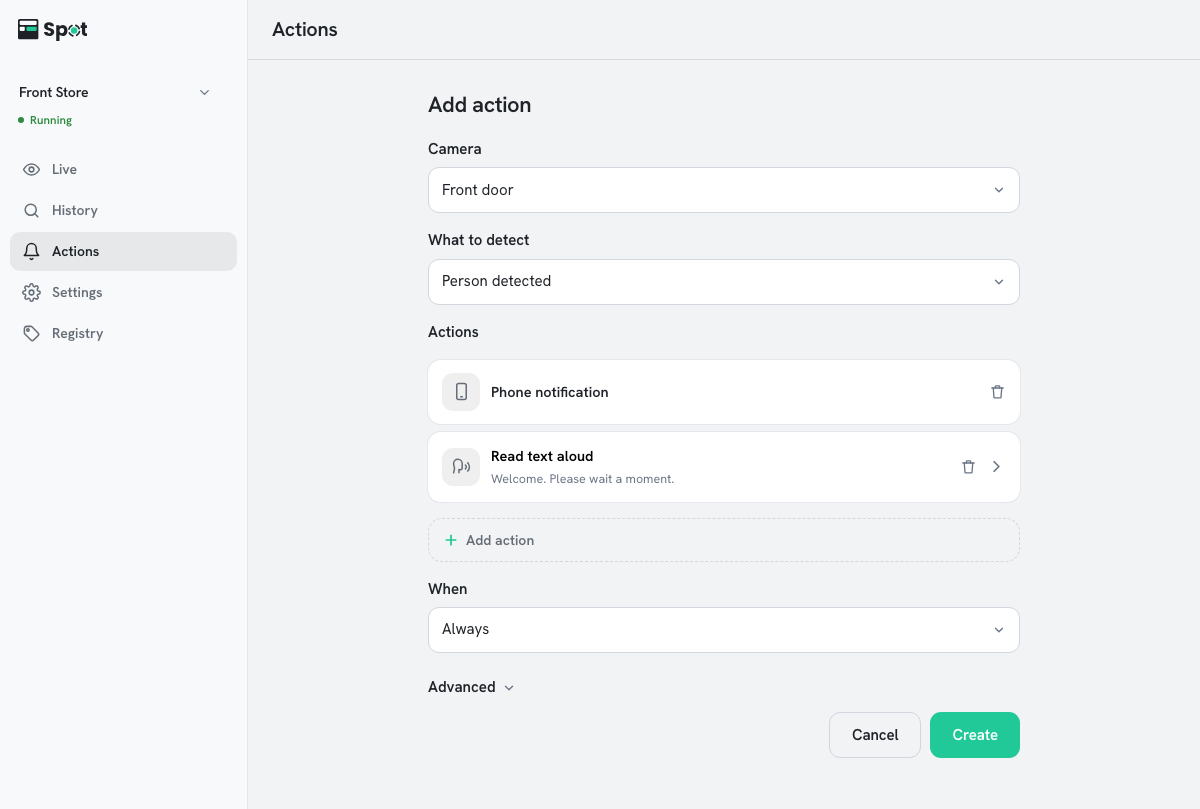
- On the Actions tab, click Add action below the list.
- Click Camera to open the list and select the cameras to watch. You can select several cameras. All cameras at the top selects every current camera.
- Under What to detect, select what should trigger the actions. If you select Specific face detected, choose the person under Who; if you select Specific vehicle detected, choose the vehicle under Vehicle. To describe what to detect in your own words, see Describing What to Detect.
- Check the Actions list. Click Add action and choose a type. Create is available once at least one action is added. For the fields each type requires, see Action Types.
- Select the hours in When. With Pick my own hours, enter a start time and a different end time.
- Click Create. The You have unsaved changes bar appears at the bottom of the screen.
- Click Save on that bar. If the device is running, click Apply in the Restart device dialog.
The item is ready when it appears in the list on the Actions tab. If the device is stopped, saved actions run only after you click Start.
| What to detect | Actions run when | Requirements |
|---|---|---|
| Person detected | A person appears in view | Person recognition on |
| Person matching a description detected | A person matching what you typed (for example, a person in a red top) appears | Person recognition on |
| Registered face detected | A registered person is recognized | Face recognition on, at least one face registered |
| Unregistered face detected | A face not on the registered faces list is detected. With no faces registered, every face triggers it. | Face recognition on |
| Specific face detected | The chosen person is recognized | Face recognition on, the chosen person registered |
| Vehicle detected | A car, bus, truck, or motorcycle appears in view | Vehicle recognition on |
| Vehicle matching a description detected | A vehicle matching what you typed (for example, a white SUV) appears | Vehicle recognition on |
| Registered vehicle detected | A vehicle with a registered plate is recognized | Vehicle recognition on, at least one vehicle registered |
| Unregistered vehicle detected | A vehicle whose plate is not on the registered vehicles list is recognized | Vehicle recognition on |
| Specific vehicle detected | The chosen vehicle is recognized | Vehicle recognition on, the chosen vehicle registered |
| Animal detected | One of 10 kinds of animals, such as birds, cats, and dogs, appears | Animal recognition on, device software 2.2.0 or later |
| Selected animal detected | An animal chosen in Animals appears. You can choose more than one. | Animal recognition on, device software 2.2.0 or later |
| Animal matching a description detected | An animal matching the description you enter (for example, a black cat) appears | Animal recognition on, device software 2.2.0 or later |
| Sound detected | A chosen sound (such as a smoke or fire alarm or glass breaking) is heard. See Detecting Sounds. | A camera that sends audio, or the device PC's microphone; device software 2.1.0 or later |
When several people or vehicles are detected together
With device software 2.2.0 or later, faces and license plates are checked one by one. When several registered people or vehicles are in view, each one is compared with the condition, not just the largest one in the picture.
- People and vehicles confirmed at the same moment run the action once, and their names are added to the end of the phone notification, as in A registered face was detected (Alex, Sam).
- Names are added for Registered face detected, Registered vehicle detected, and Unregistered vehicle detected. A registered vehicle shows its name and plate number; an unregistered vehicle shows its plate number.
- While the same person or vehicle stays in view, the action does not run again. It runs again when they reappear after being out of view for a while.
- Face and vehicle actions created on 2.1.4 or earlier are converted automatically the first time the app connects to a 2.2.0 device, and the device restarts once.
Choosing a face or vehicle condition
Person, face, and vehicle options appear under What to detect only while the matching recognition is on in Settings. Without registered faces, Specific face detected is shown with (register a face first); without registered vehicles, Specific vehicle detected is shown with (register a vehicle first). Neither can be selected until something is registered. To register, see Registering a Face and Registering a Vehicle.
Hour options and the default camera selection
| When | Active hours |
|---|---|
| Always | 24 hours |
| Daytime only | 07:00 to 18:00 |
| Nighttime only | 18:00 to 07:00 |
| Pick my own hours | Enter the start and end times. If the two times are the same, Create is unavailable. |
By default, the first camera is selected. If there are no cameras, the Actions tab shows Add a camera first. Actions are set up by choosing cameras. with an Add camera button, and Add action is not shown.