Watching Live Video
The Live tab shows live video from every camera, one tile per camera.
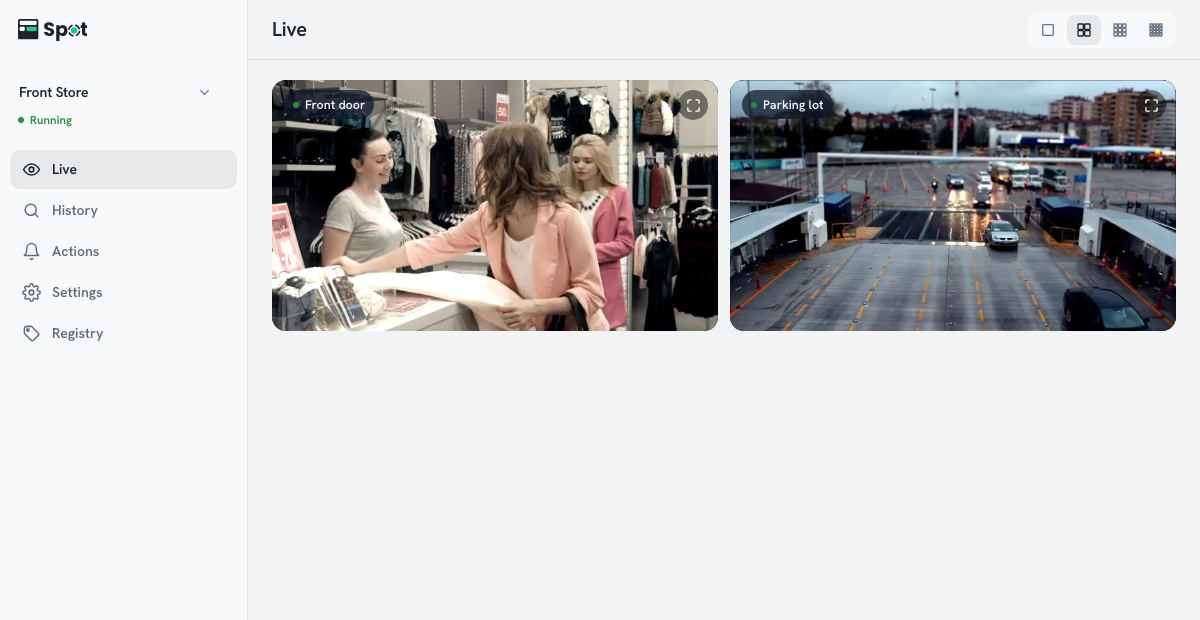
- Click a tile to open the enlarged view.
- In the enlarged view, zoom up to 6× with the mouse wheel or by pinching, and drag to move around.
- The layout buttons choose the split. On a desktop you can choose 1, 4, 9, or 16 tiles; if you do not choose one, the split fits the number of cameras. If there are more cameras than the split holds, use the arrow buttons to the left of the layout buttons (Previous camera page, Next camera page) to change pages. On a phone, choose 1 or 2 tiles per row. The buttons are to the right of the title on a desktop, and at the top right of the screen on a phone. Your choice is saved in this browser.
- Tiles of cameras that send audio show a speaker icon at the top right. Audio on tiles starts muted; click the icon to unmute. Only one camera plays audio at a time, so unmuting another camera mutes the previous one. The enlarged view opens with audio on, or muted if the browser blocks it, and shows a volume slider while audio is on (on iPhone and iPad, use the device's volume buttons). The unmuted state is not remembered. Live audio is separate from recording; to save audio with recordings, turn on Record audio in the camera settings. The speaker icon needs device software 2.1.0 or later; one-camera-at-a-time audio and audio and volume in the enlarged view need 2.2.0 or later.
A tile shows a camera icon instead of video
- A camera that is turned off shows a camera icon and cannot be enlarged. Turn it on in Settings > Cameras.
- Video is also hidden while the status is anything other than Running (for example Stopped or Connecting…). See Checking the Connection Status.
The enlarged view
The camera name and a LIVE indicator are at the top, with zoom out, zoom in, and close buttons on the right. Zooming affects the display only and does not change what is recorded. Saved footage can be zoomed the same way, up to 4×.
Boxes and labels over the video
- The app draws the boxes and labels for detected people, faces, vehicles, and animals over the video, both on the tiles and in the enlarged view. Boxes follow their targets as they move. A registered face is labeled with the person's name, a registered vehicle with its name, and other vehicles with the plate number that was read. Animals are labeled with their kind, such as cat or dog. Vehicle names, and names for every registered person and vehicle when several appear together, need device software 2.2.0 or later.
- A face box is shown only when it is inside a person box. This affects only the display, not recordings, actions, or indexing.
- To keep the boxes in sync with the video, live video may be delayed by up to one second.