Finding a Person
Pick a person in a recording to find the other recordings they appear in, or find people by a description such as red coat.
Picking a person in a recording
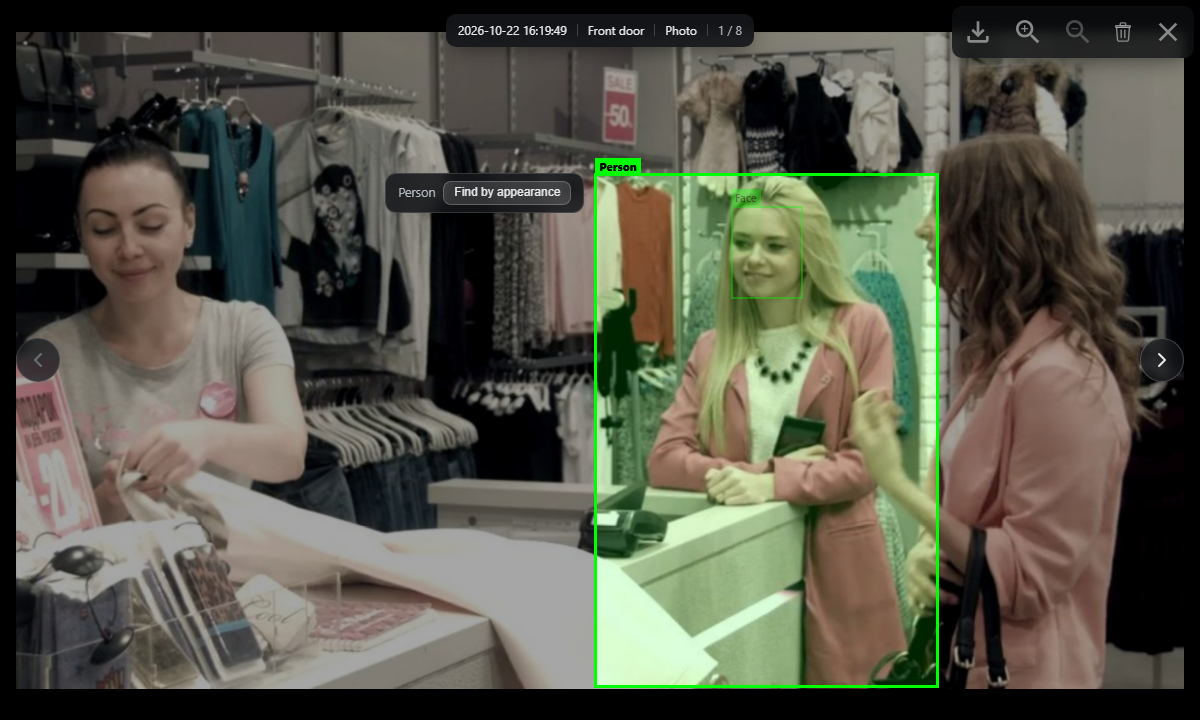
- On the Timeline of the History tab, go to a time when the person appears and pause. Boxes appear on people and faces. For how to move around, see Viewing and Playing Recordings.
- Click the person's box. The scene view opens paused at that moment with the box selected. A person box shows Find by appearance; a face box shows Find by face.
- Click Find by appearance or Find by face. Find by appearance compares clothing, build, and carried items, so it works even when the face is not visible. Find by face requires face recognition to be on, but the person does not need to be registered.
The person's recordings appear as tiles, one per video. Click a tile to play from that moment; Back at the top returns to the list.
When the timeline is not shown
When the Scenes list is shown instead of the timeline (see Viewing and Playing Recordings), open a recording showing the person. If it is a video, pause it and click a box. If Nothing to select at this point is shown, move with Previous indexed point or Next indexed point.
Searching by description
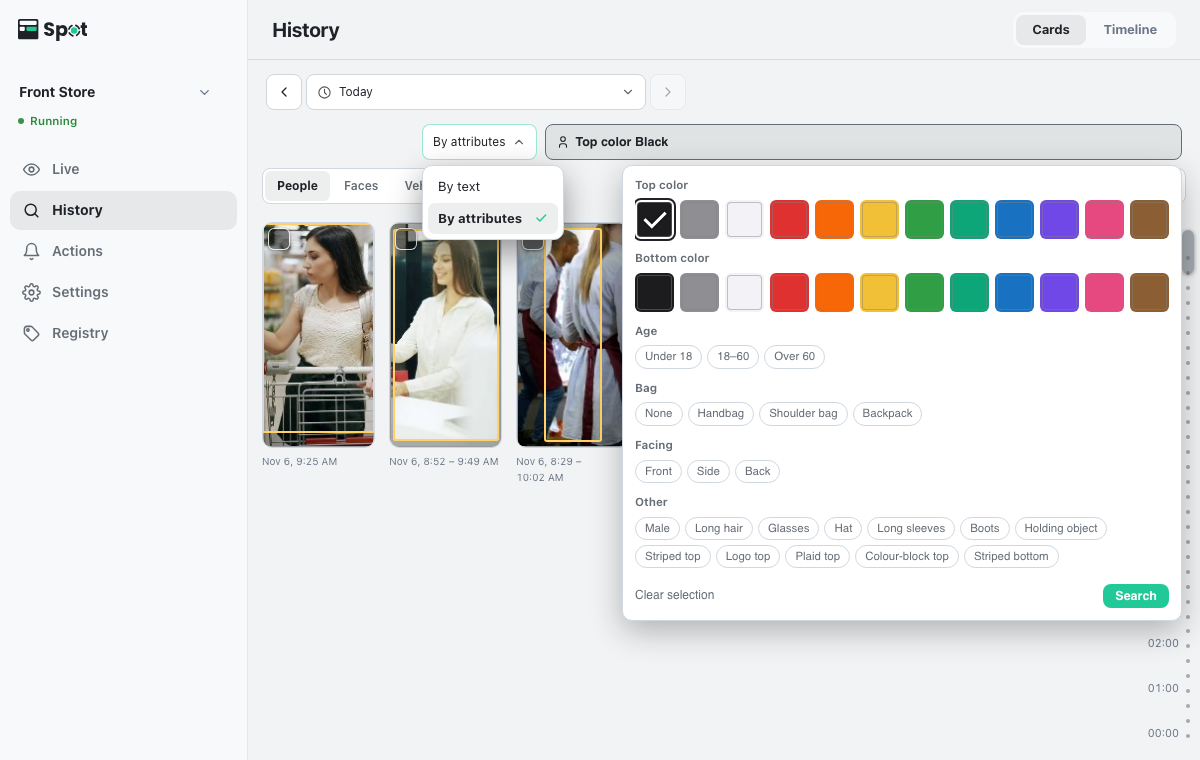
- On the History tab, open Cards, select People, and choose an option under Search by in the search row. When the Scenes list is shown instead of the timeline, it also has a search row above the list.
-
For By text, type a phrase such as
red coatand press Enter. For By attributes, click Attributes, choose options such as Top color, and click Search.
In the People view, only the cards of people who match are shown. In the Scenes view, a tile appears for each matching moment; click a tile to play from that moment.
Working with results
The number of matches (n results) appears above the results. Face and appearance results show one tile per video, along with n clips; text and attribute results show a tile for each matching moment.
- When there are too many face or appearance results, type a condition into the Narrow these results, e.g. red jacket · Enter box above the results and press Enter. Only the current results are filtered; each condition appears as a chip that you can clear with Remove, and Reset returns to the full list.
- To remove incorrect matches, select their tiles and click Not this person in the selection bar above the results. You can select several tiles at once. Removed tiles move to Removed: n below; to bring them back, expand it, select the tiles, and click Undo. In text and attribute results the same button reads Hide, and n removed. Undo brings them back.
- When there are too many matches, only some are shown, along with Showing only some results. Narrow the period to see them all.
- While face or appearance results are shown, the search row stays available: By text narrows the current results, and By attributes starts a new search.
Results are empty or slow to appear
Recordings in which a person is detected are indexed automatically in the background after they are saved. Recordings that are not indexed yet can still be opened and played, but do not appear in search results. When indexing falls behind, recent recordings may take a while to appear in results.
On the timeline, when the recording under the red line is not indexed yet, Not indexed yet appears at the bottom left of the tile and that recording is hatched on the time bar.
Results are empty when the recording was saved before face recognition was turned on (face search only), when it has already been deleted because the storage period ended, or when nothing stored matches.
If a text search fails, Search failed. is shown followed by the reason, for example Not enough memory on the device to run text search. Try again in a moment. or The device took too long to respond. Try again.
For recordings from the last 72 hours, boxes appear on people and faces during playback too. For older recordings, boxes appear only while paused at the tick marks on the progress bar (the moments when Litmus analyzed people).
How "the same person" is decided
There is no per-search setting for how strictly two captures must match to count as the same person. It is set in one place, Settings > Indexing > Same-person threshold, and applies to finding by face or appearance and to the People cards (see Indexing Settings).
- Search by appears only when the device supports text and attribute search. While the search model is downloading, The search model is still downloading. Please try again shortly. is shown.
Attributes choices and the three-state buttons
| Item | Choices |
|---|---|
| Top color · Bottom color | Pick one or more color swatches. |
| Age | Under 18 · 18–60 · Over 60 |
| Bag | None · Handbag · Shoulder bag · Backpack |
| Facing | Front · Side · Back |
The buttons under Other cycle through states with each click. Unselected means not considered, one click means yes, a second click means no, and a third returns to the start. Each button displays its current state, for example "Hat", "With Hat", or "Without Hat".
With the no state, you can search for conditions such as "a person not wearing a hat" or "a person not carrying anything." Clear selection resets every choice.
The groups below are for clarity; on screen, all choices appear in a single row.
| Group | Choices |
|---|---|
| Person | Male · Long hair · Glasses · Hat |
| Top | Long sleeves · Striped top · Logo top · Plaid top · Colour-block top |
| Bottom | Trousers · Shorts · Skirt / dress · Long coat · Striped bottom · Patterned bottom |
| Other | Boots · Holding object |