Storage Period and Space
Choose how many days recordings are kept, how much free disk space to keep, and where recordings are saved.
- On the Settings tab, click Storage.
- Under Storage period, choose how long to keep recordings.
- Click Save on the save bar at the bottom of the screen.
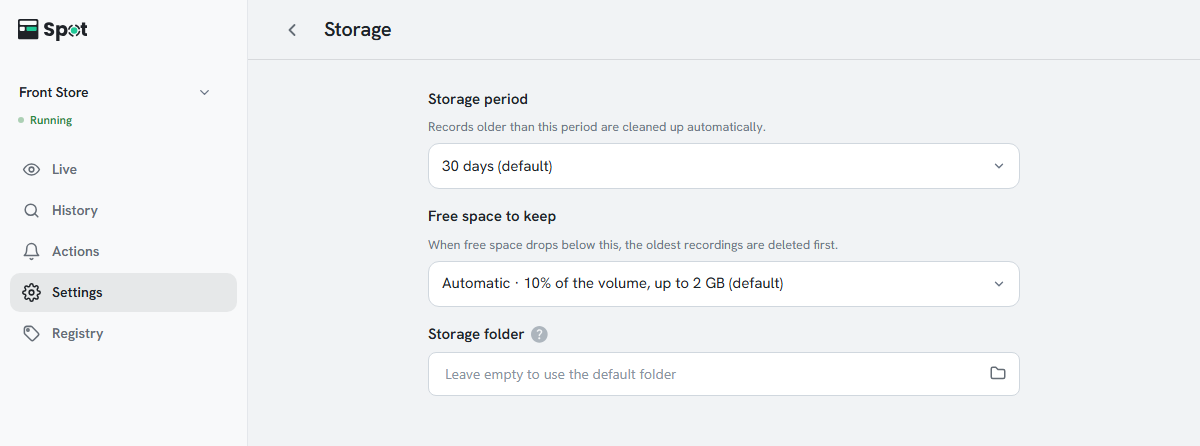
| Setting | What it does |
|---|---|
| Storage period | 7, 14, 30 (default), 60, 90, or 180 days. Recordings older than this, including their photos, videos, and face data, are deleted automatically. |
| Free space to keep | When free disk space falls below this value, the oldest footage is deleted regardless of the storage period. |
| Storage folder | Where recordings are saved. Set it when using an external drive; leave it empty to use the default folder. |
Note
A longer period uses more storage. Usage depends heavily on the number of cameras and how busy
the site is, so check actual usage for a few days after installation before settling on a value.
Free space options and changing the folder
- Free space to keep offers Automatic · 10% of the volume, up to 2 GB (default), 512 MB, 1 GB, 2 GB, 5 GB, 10 GB, or 20 GB.
- If you change the storage folder, existing recordings and logs stay in the previous folder, and the screen reloads after saving. To move your history to another drive or PC, see Moving Your Data.
- If the storage folder is not a full path (for example, D:spot), a red message asking you to enter the full path of the folder appears below the field. The device cannot start with such a path.