Tuning Performance
Choose the AI processor and how often video is analyzed. These values apply to person, face, vehicle, and animal recognition. The defaults work for most sites.
- On the Settings tab, click Performance.
- Choose a value for the item you want to change. See "When to change" in the table below.
- Click Save on the save bar at the bottom of the screen.
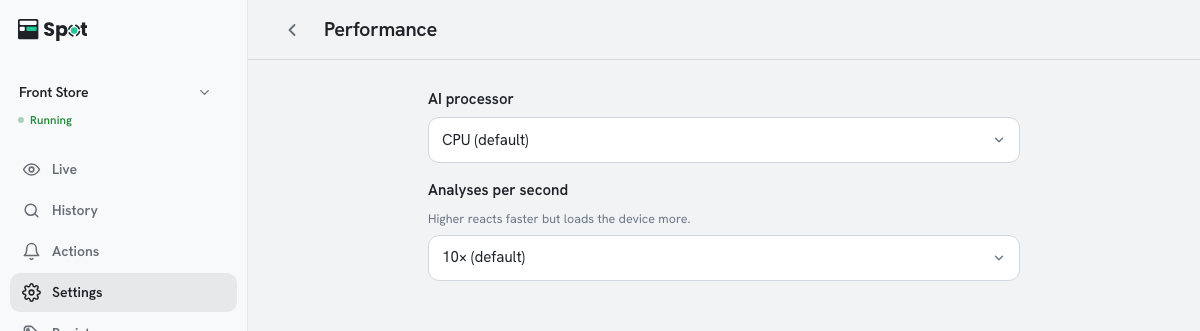
| Setting | What it does | When to change |
|---|---|---|
| AI processor | Chooses what runs video analysis. Shown only on devices with more than one option. | The graphics card or integrated graphics if the device has one |
| Analyses per second | How many times per second the video is analyzed. | Raise it only when the device has headroom |
Note
Detection accuracy and thresholds are set on the screen for each recognition type (see
Person Recognition, Turning On Face Recognition,
and Turning On Vehicle Recognition).
Options and defaults for each setting
- AI processor: CPU (default) or one of the device's graphics processors (integrated graphics or a graphics card). Shown on Windows and Linux devices. On a Mac, the device picks the right processor automatically.
- GPU acceleration: Shown instead of AI processor on device software 2.1.3 or earlier. On or Off (default). Devices without a usable GPU run on the CPU regardless of this setting.
- Analyses per second: 5, 10, 15, 20, 25, or 30. New places default to 10. The value is an upper limit; a device that cannot keep up analyzes less often. If the camera's frame rate is lower, that rate applies.
- If cameras are currently configured with different values, the screen shows one of them. Changing a value and saving applies the same settings to all cameras.