Connecting the Device
Connect the app to your device. After the first time, the app connects automatically whenever it opens.
Before you begin, power on the device and wait about one minute.
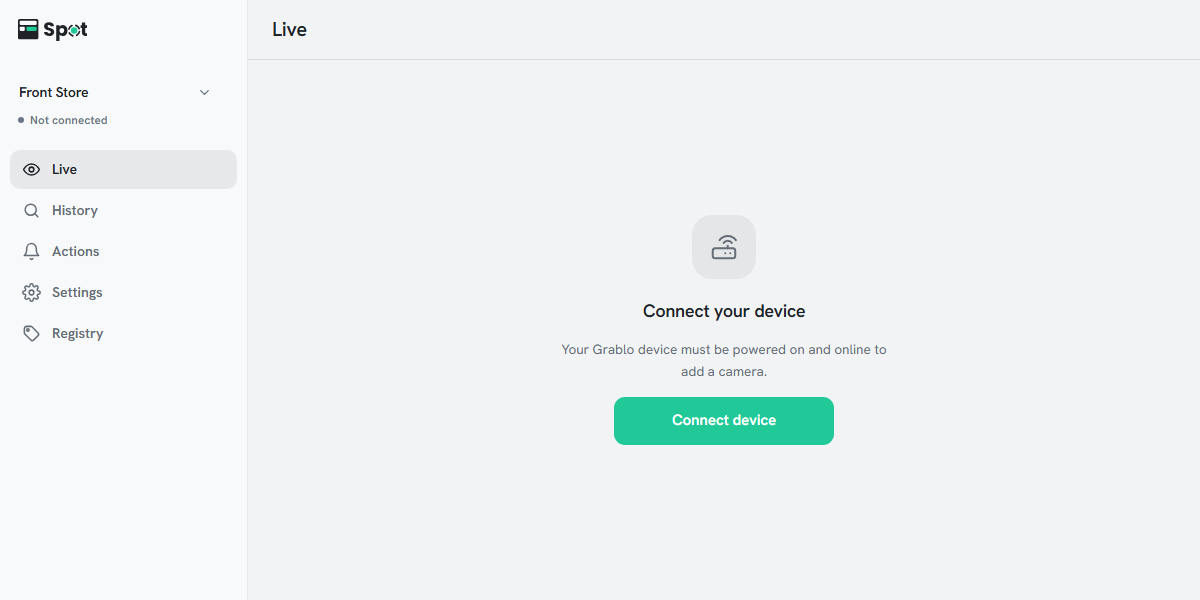
- Click Connect device on the Connect your device screen. This screen appears after you sign in if your account has no places. It also appears on the Live tab when the place's device isn't connected, and you can click Connect device in the setup guide instead. The Device Manager window opens.
- If no device is registered yet, the Add Device screen opens directly. Devices on the same network appear automatically under Devices on Local Network.
- Select your device and click Add Device.
- Check that the device is selected in the list and click Connect. The device you just added is already selected. The window closes once the device connects. If you connect without a place, the device's place is added to your account, or a new place is created if the device has none.
When the app is connected, the Live tab shows No cameras yet and Add camera. Next, add a camera.
Switching to a different device
On the Settings tab, click the device name row to open Device Manager. The connected device's details appear first. Click Disconnect, then select the device you want in the list and click Connect.