Talking through a camera
Send your voice to a camera that has a speaker. The microphone is used only while talking is on.
Before you begin
- The camera must support talking (ONVIF two-way audio). The microphone icon appears only on the tiles of cameras that support it. Works with device software 2.4.0 or later.
- Browsers allow the microphone only on an https address or on a screen opened on the same computer as the device. You can talk from the remote access screen, but not from the local screen opened with an http address on another computer on the same network.
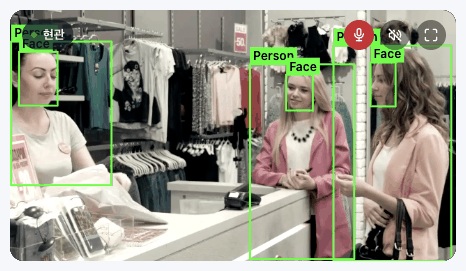
- In Live, click the microphone icon at the top right of the camera tile (to the left of the speaker icon).If the browser asks for permission to use the microphone the first time, allow it.
- When the icon turns red, speak. Your voice comes out of the camera speaker.
- Click the microphone icon again to stop.
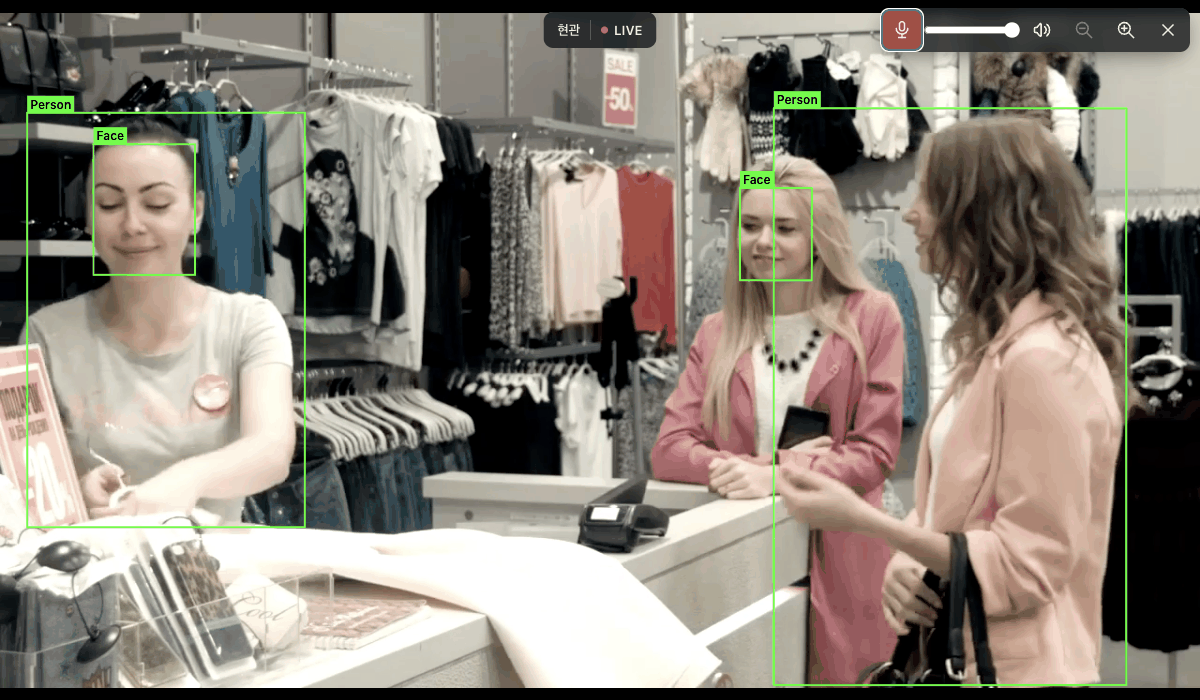
In the larger view, use the same icon at the top right.
- You talk through one camera at a time. Turning on talking for another camera turns off the previous one.
- Talking stops when you move to another tab or the connection drops.
- It takes about a second to connect to the camera after you turn talking on.
- In the larger view, click the chevron icon to the right of the microphone icon to choose a microphone. Default microphone is selected at first; other microphones are listed by name after you turn talking on once and allow microphone access. Your choice is saved in this browser, and if that microphone isn't connected, the default microphone is used.
- You can also talk from Home Assistant and Apple Home (Using Litmus in Home Assistant).
Messages when talking
| Message | What to do |
|---|---|
| Someone else is talking through this camera. | Only one person can talk through a camera at a time. Try again after they finish. |
| The microphone works only on an https address. | Open the remote access screen, or open Litmus on the same computer as the device. |
| Can't use the microphone. Check the browser's microphone permission. | Allow the microphone in the site settings in the browser's address bar. Check that a microphone is connected to the computer. |
| The camera ended the talk session. Try again. | The camera ended talking. Click the microphone icon again. |
| Couldn't talk through the camera. Try again. | Check the camera's connection status and try again. |
Cameras that support talking
Cameras that receive G.711 audio over ONVIF two-way audio are supported. Cameras that accept only AAC audio, and cameras that accept talking only through the manufacturer's own method, are not supported, and their tiles do not show the microphone icon.