Using Litmus in Home Assistant
Each camera becomes a device, and the place (the device running Litmus) becomes a device that groups those camera devices.
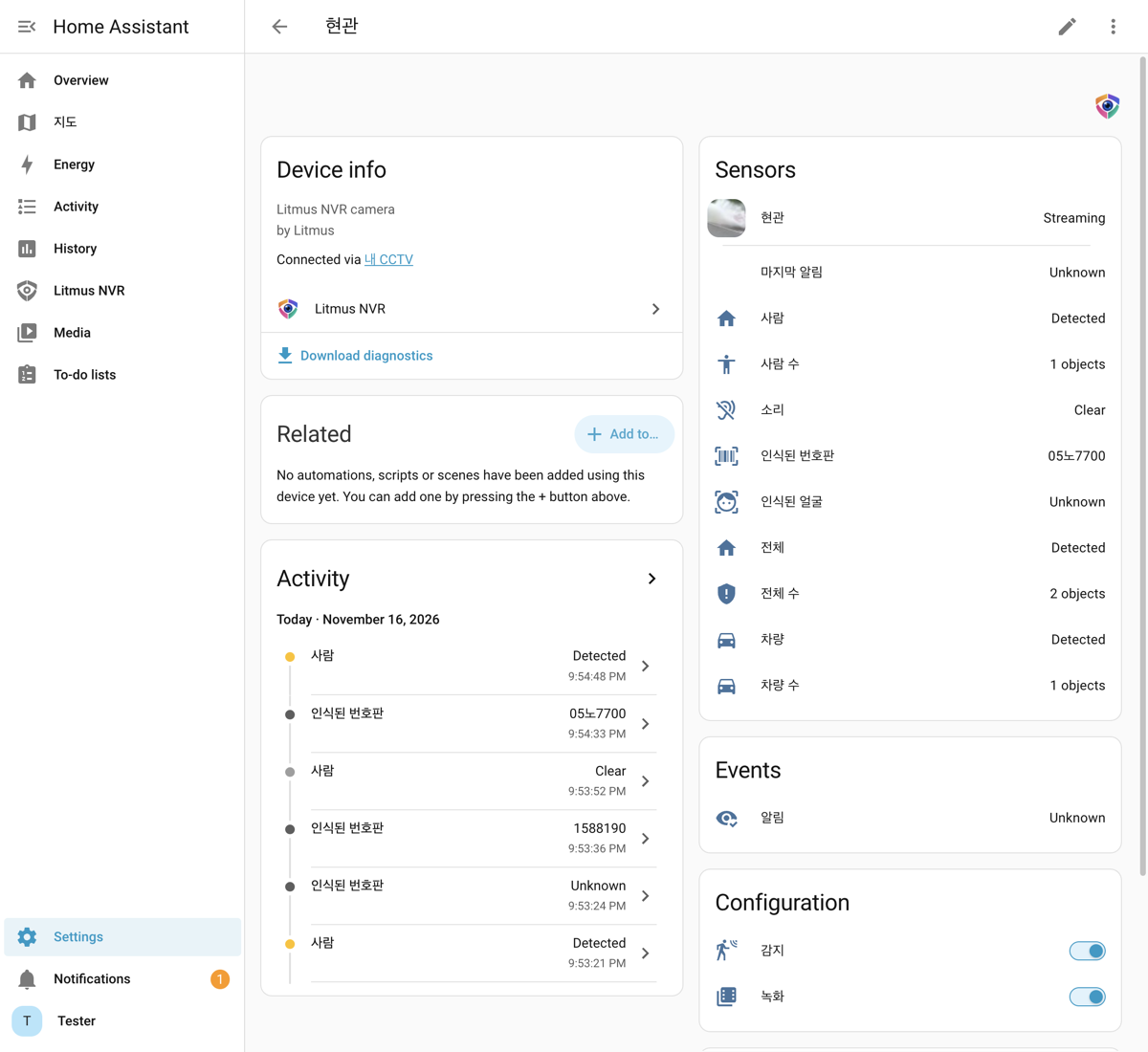
| Item | Description |
|---|---|
| Camera | Live video and snapshots. Shown as unavailable when the place is stopped or the camera is not connected. |
| Person, Vehicle, Animal, Sound, All | Turn on when something is detected and turn off 30 seconds after the last detection. All is on while any of the detections turned on is present. |
| Person count, Vehicle count, Animal count, All count | The number detected in the current picture. All count is their sum. |
| Recognized face, Recognized plate | The name of the last recognized registered face and the last license plate. Cleared after 60 seconds. |
| Alert | An event that fires each time an action runs for this camera. It carries the action's title, message, image address, and the address of the recording (clip) of that moment, so you can use it to trigger Home Assistant automations. |
| Last alert | The image of the last alert. |
| Detect, Record | Turn detection and recording for this camera off and on. When turned off, Detection off or Recording off appears next to the camera name in Live in Litmus, and the camera is listed in Settings > Integrations, where Turn on turns it back on. Restarting the device returns them to the place settings. |
| Phone notifications | On the place device. When turned off, actions still run but phone notifications are not sent. Phone notifications off appears in Settings > Integrations and on the Actions tab, where Turn on turns them back on. |
| Software | On the place device. Shows whether a new version of the device software is available. Updates are installed from Litmus. |
| Status | On the place device. One of Running, Applying settings, Starting, Stopping, Stopped, or Error. |
| Connected | Shows whether video is coming in from the camera. |
| Performance | CPU and memory usage, inference speed, GPU load, and uptime (place device), and camera fps and detection fps (camera devices). Off by default; when turned on, they update every 5 seconds. |
If you draw detection zones on a camera, each zone becomes a device with person, vehicle, animal, and all sensors and counts for that zone.
Opening Litmus
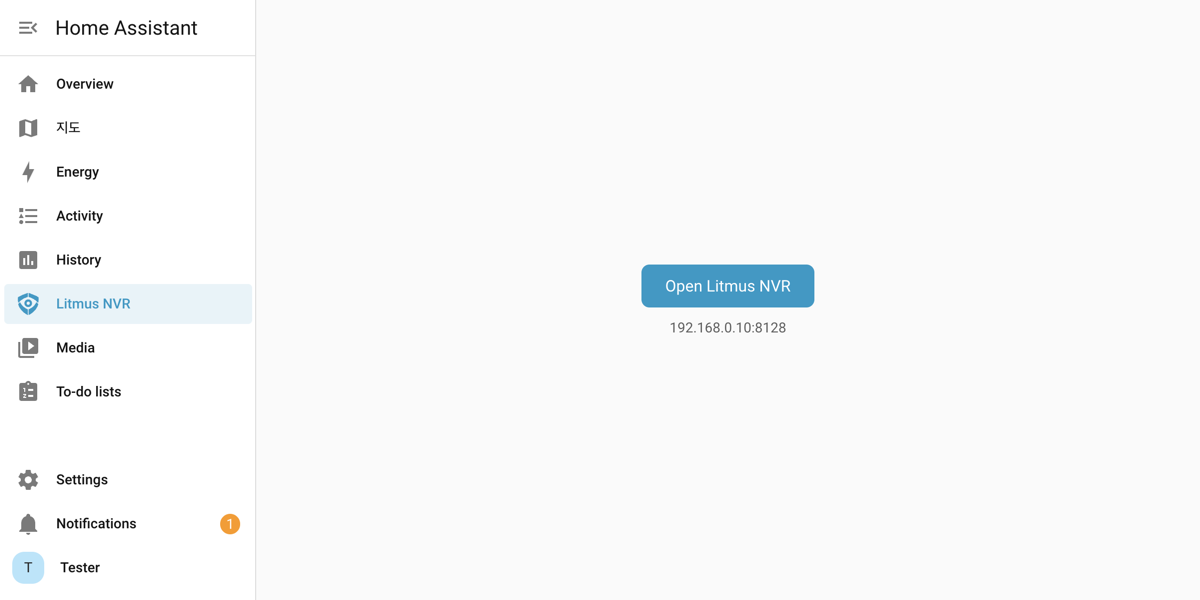
Litmus NVR is added to the Home Assistant sidebar. Click it, then click Open Litmus NVR to open the Litmus local screen in a new tab. If Litmus runs as a Home Assistant add-on, it opens inside Home Assistant instead.
Viewing recordings
In Home Assistant's Media, select Litmus NVR and the place to see folders for people, faces, vehicles, and animals and a folder for each camera. Kind folders appear for what this place recognizes, and for kinds turned off that still have recent records. Click a recording in a folder to play it. The people, faces, vehicles, and animals folders show the last 7 days by date. View older recordings in Litmus.
Talking from Home Assistant
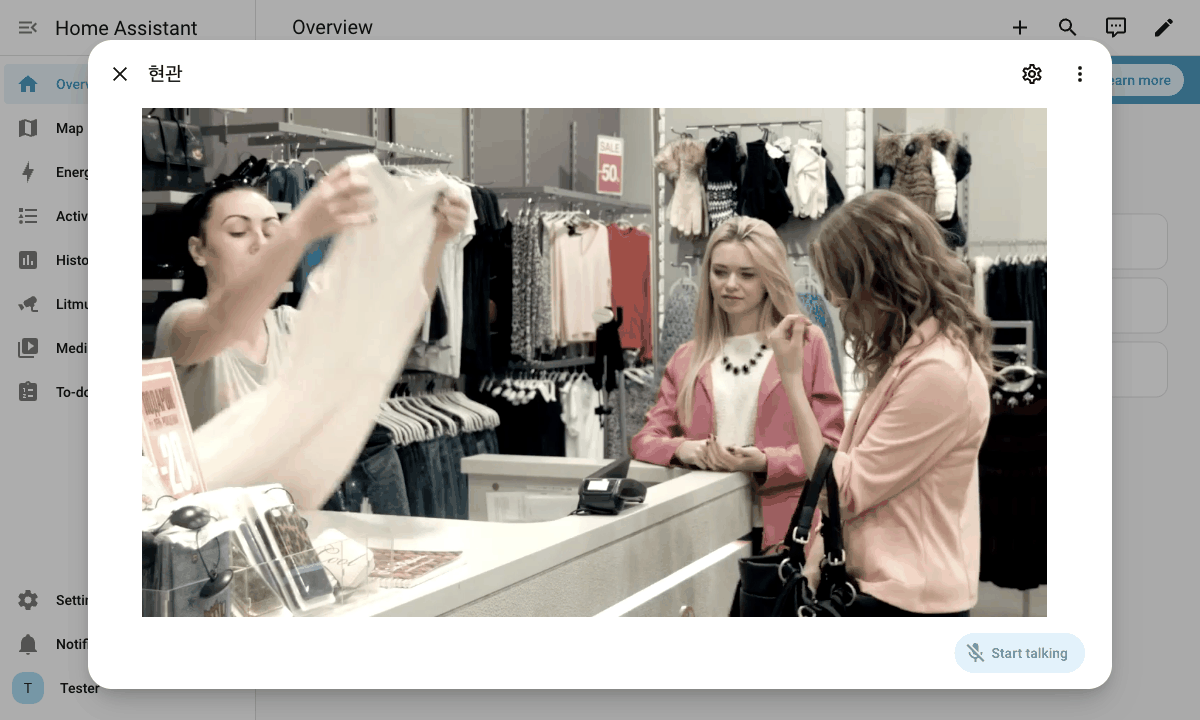
For cameras that support talking, Home Assistant 2026.11 or later shows a talk button in the camera window. It is an experimental Home Assistant feature, so turn it on first.
- In Home Assistant, go to Settings > System > Labs and click Enable for Two-way audio.
- Click the camera to open its window, then click Start talking at the bottom right.The browser uses the microphone only when Home Assistant is opened over https.
Getting alerts on your phone
Create an automation from the blueprint included with the integration to send Litmus alerts to the Home Assistant phone app. The notification shows the action's title and message and the image of that moment. Tapping it plays the recording of that event.
- The Home Assistant app must be installed on the phone and signed in to this Home Assistant.
- In Home Assistant, go to Settings > Automations & scenes > Blueprints and click Import blueprint.
- In Blueprint address, enter https://github.com/grablo/litmus-hass-integration/blob/main/blueprints/automation/litmus_nvr/notify.yaml, click Preview, and then click Import blueprint.
- In the blueprint list, click Litmus NVR alert notification.
- Fill in the fields below and click Save.Create one automation for each camera.
| Field | Value |
|---|---|
| Alert | The alert event of the camera to get notifications for (for example, Front door Alert). |
| Phone | The phone that receives the notifications. |
| Alert kinds | The kinds of alerts to receive. Leave it empty to receive all alerts. |
| Home Assistant address | The address you open Home Assistant with on the phone (for example, https://example.ui.nabu.casa). With an address, tapping a notification plays the recording. Without one, the Home Assistant app opens. |
- Tapping a notification while the event is still going on plays what has been recorded so far. After the event ends, it plays the whole event.
- To watch recordings away from home, enter an address that can be reached from outside (Home Assistant Cloud or an address you set up). A home address (for example, http://192.168.0.5:8123) opens only on the same network.
- Images and recordings open without signing in to Home Assistant. They open for 7 days after the alert and for the latest 200 alerts. After the device restarts, images and recordings of earlier alerts no longer open.
- No recording plays for a camera with recording turned off or when there is no recording for that time.