Adding cameras to Apple Home
Each camera is added to the Home app as a separate camera.
Before you begin
- The iPhone or iPad must be on the same network as the device.
- To watch or get notifications away from home, you need a home hub (Apple TV or HomePod). This is an Apple Home requirement.
- A device installed with Docker must use host networking. The provided docker-compose.yml uses host networking.
- In Settings > Integrations, turn on the Apple Home switch. The first time you turn it on in a place that has actions, the Restart device window appears. Click Apply.The first time, the required component is downloaded and the progress appears as Downloading. On Windows, allow access if a firewall window appears.
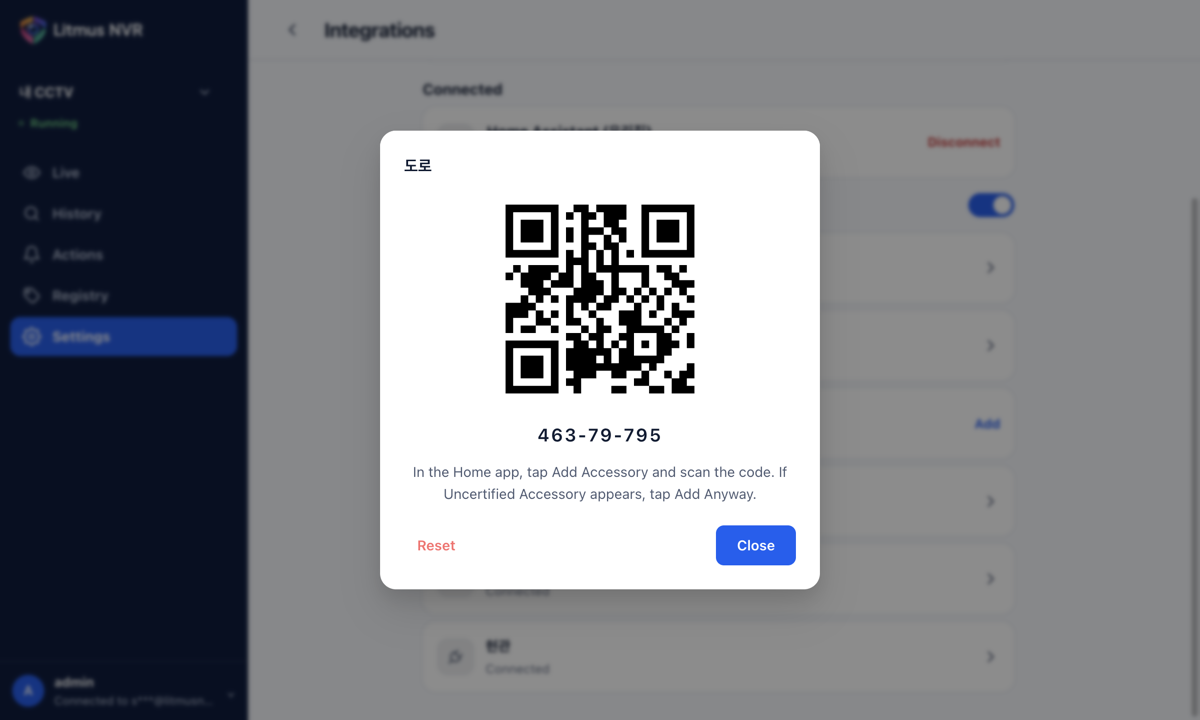
- In the Apple Home list, click the camera to add. A window shows that camera's QR code and setup code.Only one camera's QR code is shown at a time, so the Home app cannot add the wrong camera.
- In the Home app on the iPhone or iPad, tap Add Accessory and scan the QR code in the window.
- If Uncertified Accessory appears, tap Add Anyway and follow the Home app.
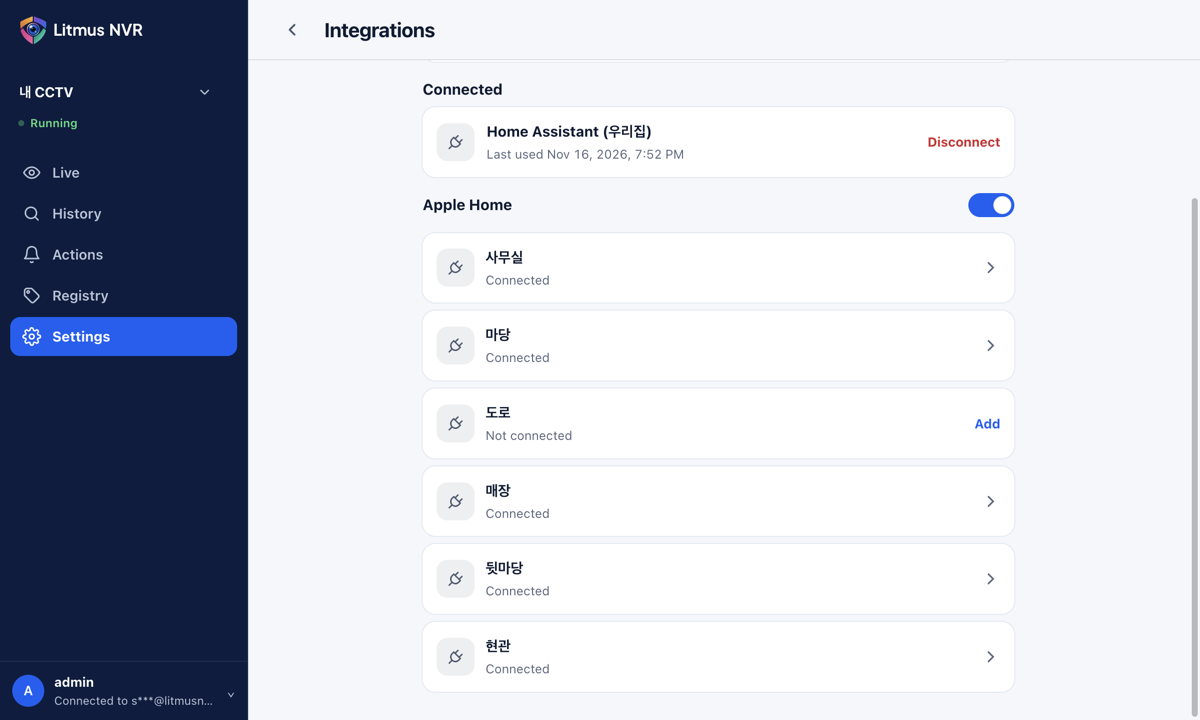
Added cameras show Connected. In the Home app you get live video, sound, a motion sensor, and person, vehicle, and animal sensors. For cameras that support talking, you can talk from the Home app as well.
- Renaming a camera in Litmus keeps its connection in the Home app.
- When you delete a camera in Litmus, it stays in the Home app as No Response. Remove it in the Home app.
- Add a new camera to the Home app separately with its own QR code.
- You do not need to add cameras again after restarting the device or turning the Apple Home switch off and on.
Camera status
| Not connected | The camera has not been added to the Home app yet. Click the camera to show its QR code and setup code. |
| Connected | The camera has been added to the Home app. |
| Couldn't read the pairing data | The camera's pairing data is damaged. Create a new code with Reset and add the camera again. |
| Couldn't start Apple Home. Try again. | Turn the switch off and on again. |