Sharing a place
Invite family or staff by email to view this place with you. People you share with can watch live and recorded video and get alerts, but can't change settings.
Before you begin
- Available with device software 2.6.0 or later. On earlier versions, Update the device to use this is shown.
- Only the place owner can invite people, up to 10 per place.
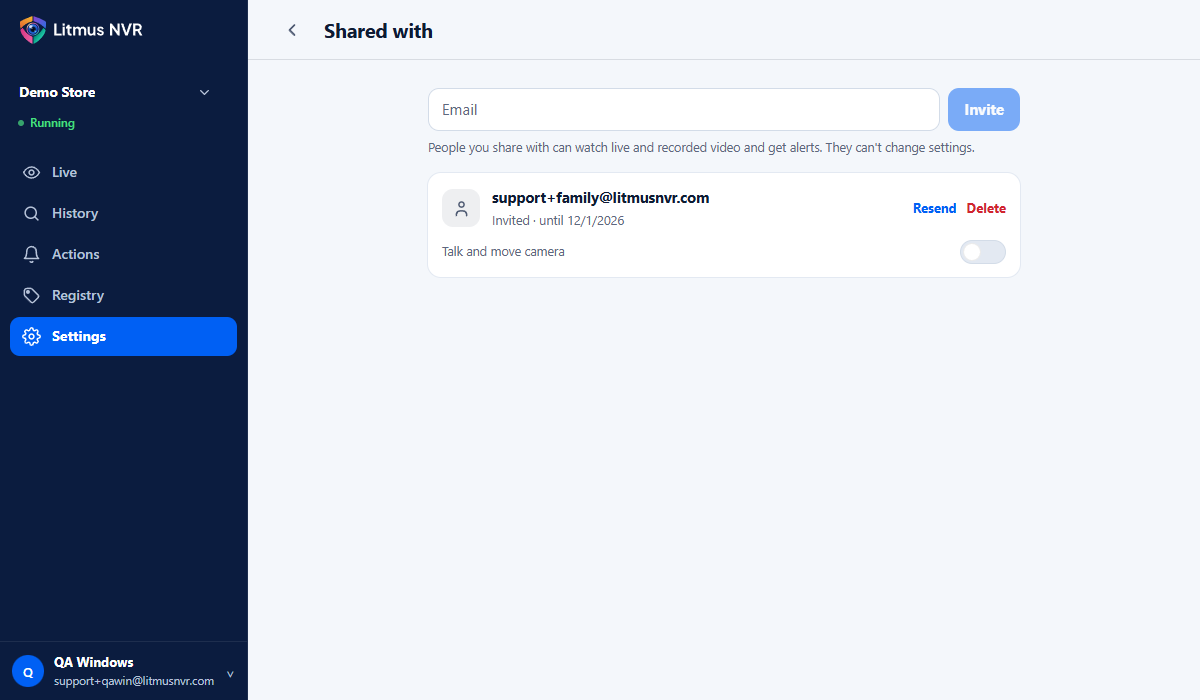
- Click Settings > Shared with.
- Enter the email address of the person to invite and click Invite.An invitation email is sent, and the list shows the expiry date. Invitations are valid for 7 days.
- When the person opens the link in the email and clicks Accept invite, the list shows Joined.They must sign in with the account of the invited email address. If they don't have an account, they sign up with that address and then accept.
What people you share with can do
| Feature | People you share with |
|---|---|
| Live, History, downloading recordings | Allowed. |
| Getting alerts | Each person turns it on or off with Settings > Get alerts for this place. |
| Talking, controlling a PTZ camera | Allowed only when the owner turns on Talk and move camera for that person. Turning it off stops them right away. |
| Changing settings, actions, or the registry, deleting recordings, saving or deleting PTZ presets, inviting others | Not allowed. |
- Click Resend next to a person to send the invitation again, or Delete to cancel the invitation or stop sharing. When you stop sharing, the place disappears from that person's screen right away.
- People you share with can stop sharing with Settings > Leave place.
- Sharing uses your Litmus account, so you share from the remote access screen. On a local screen whose device is linked to your account, clicking Shared with opens sharing on the remote access screen in a new tab.