Controlling a PTZ camera
Pan, tilt, and zoom a PTZ camera from the larger view, and move it to positions saved on the camera (presets).
Before you begin
- The camera must be added as ONVIF. In Add camera, add the camera that the list shows as ONVIF (Adding a camera). Cameras added with an RTSP address can't be controlled.
- The camera must support ONVIF PTZ. The PTZ icon appears only in the larger view of cameras that support it. Works with device software 2.6.0 or later.
- In Live, open the camera tile in the larger view.
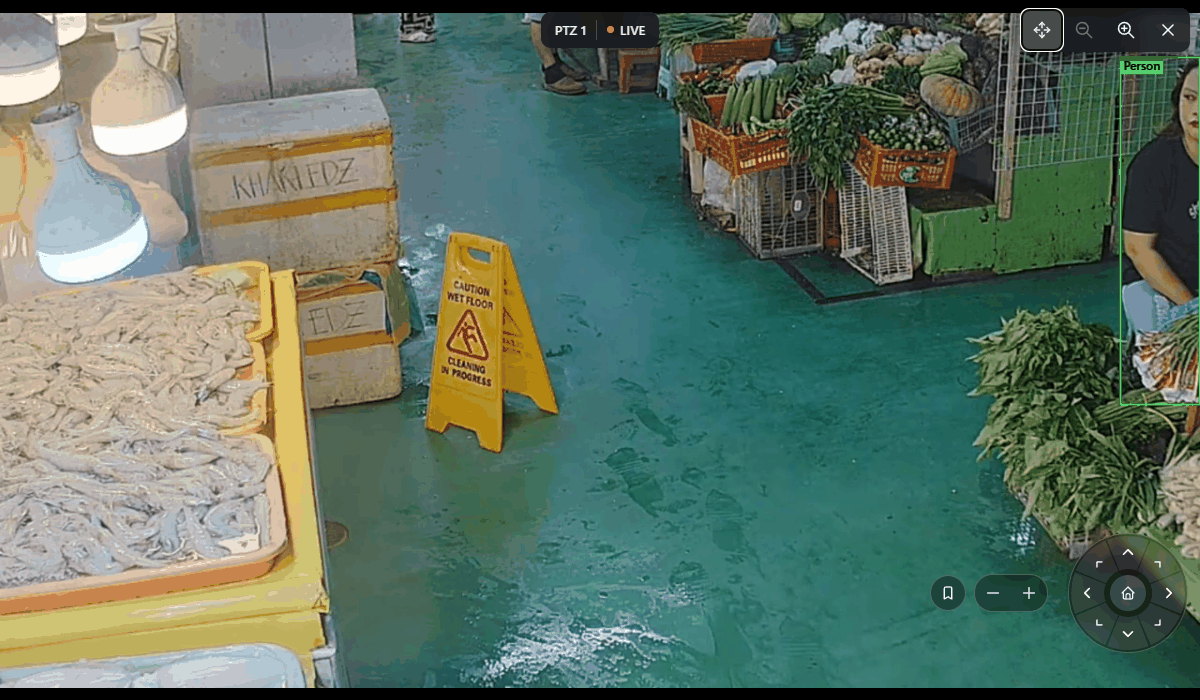
- Click the PTZ icon (crossed arrows) at the top right.A direction pad appears at the bottom right of the video.
- Press and hold a direction on the pad. The camera moves while you hold it and stops when you release it.Slide to another direction while holding to change direction. The four diagonals are also available.
- Press and hold the minus or plus icon to the left of the pad to zoom out or in.
- Click the home icon in the center of the pad to move the camera to its home position.Shown only when the camera supports a home position.
Presets
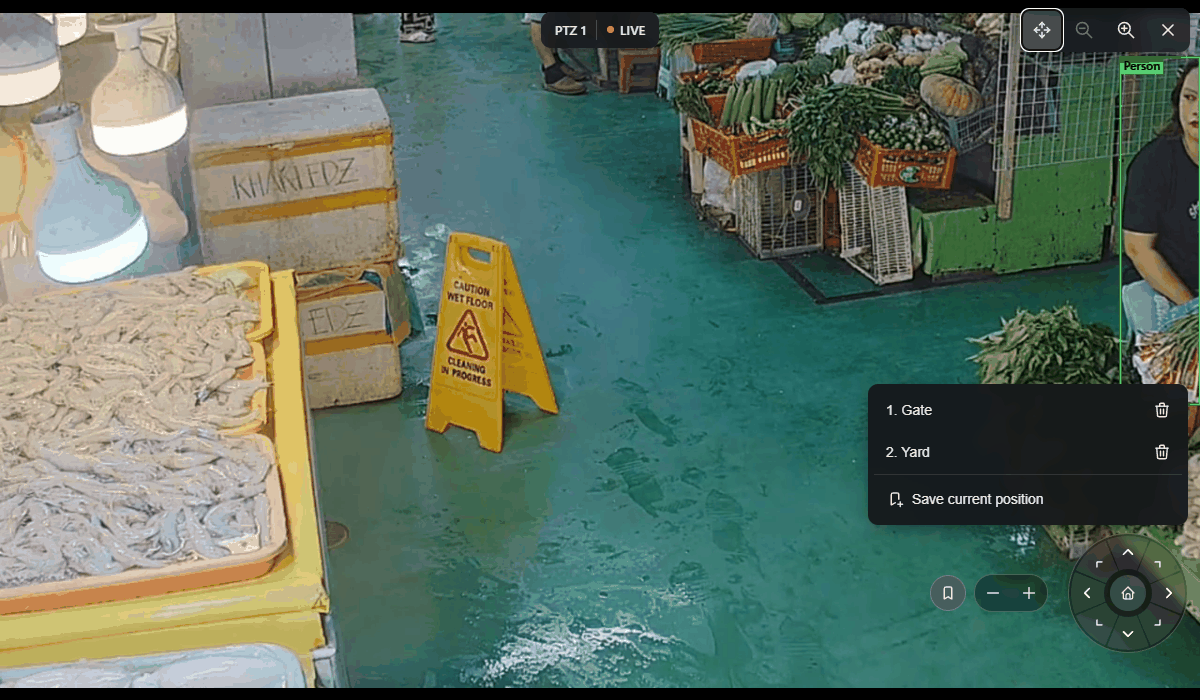
- Click the bookmark icon to the left of the pad.The list of presets saved on the camera opens. Shown only when the camera supports presets.
- Click a preset name to move the camera to that position.
- To save the current position as a new preset, click Save current position, enter a name, and click Save.
- To delete a preset, click the trash icon to the right of its name, then click Delete.
- You can also use the keyboard: the arrow keys move the camera,
+and-zoom in and out, and the number keys 1 to 9 go to that preset. - Detection pauses while the camera is moving and for a short time after it stops, to avoid false detections from the moving picture.
- The camera stops when you leave the window, switch to another tab, or the connection drops.
- People a place is shared with can control the camera only when the owner allows Talk and move camera for them, and they can't save or delete presets (Sharing a place).
Messages when controlling a PTZ camera
| Message | What to do |
|---|---|
| Couldn't move the camera. Try again. | Check the camera's connection and try again. |
| A preset with this name already exists. | Enter a different name. Names that differ only in letter case or leading and trailing spaces count as the same name. |
| The camera can't store any more presets. | Delete a preset you don't use, then save. |
| The camera doesn't accept this name. Enter a different name. | Enter a shorter name or use different characters. |